


I was searching for this type of connection, thinking it is very common and on vendor’ KB site, i located only one document, very complex, with Layer2 setup, etc… But there is always an easier way and not less secured. The main point is to have PAN firewall configured so you can surf the Internet before you start this journey. And this can be also used for a small businesses to provide wifi internet access without spending a load of money…
The setup is fairly simple; i will assume that you have basic understanding how to setup your wifi router but if you dont, no worries, i will provide a link to manufacturer’ page. For my WIFI i use Netgear NightHawk router, so here is a link for a basic setup..
My PAN firewall connects to ISP and obtains an ip address automatically, no static IP for my firewall. I have configured firewall so i am able to surf the internet while connected to ports 2-8 on my PAN.
Here are firewall rules for Internet access, NAT policy and Zones:
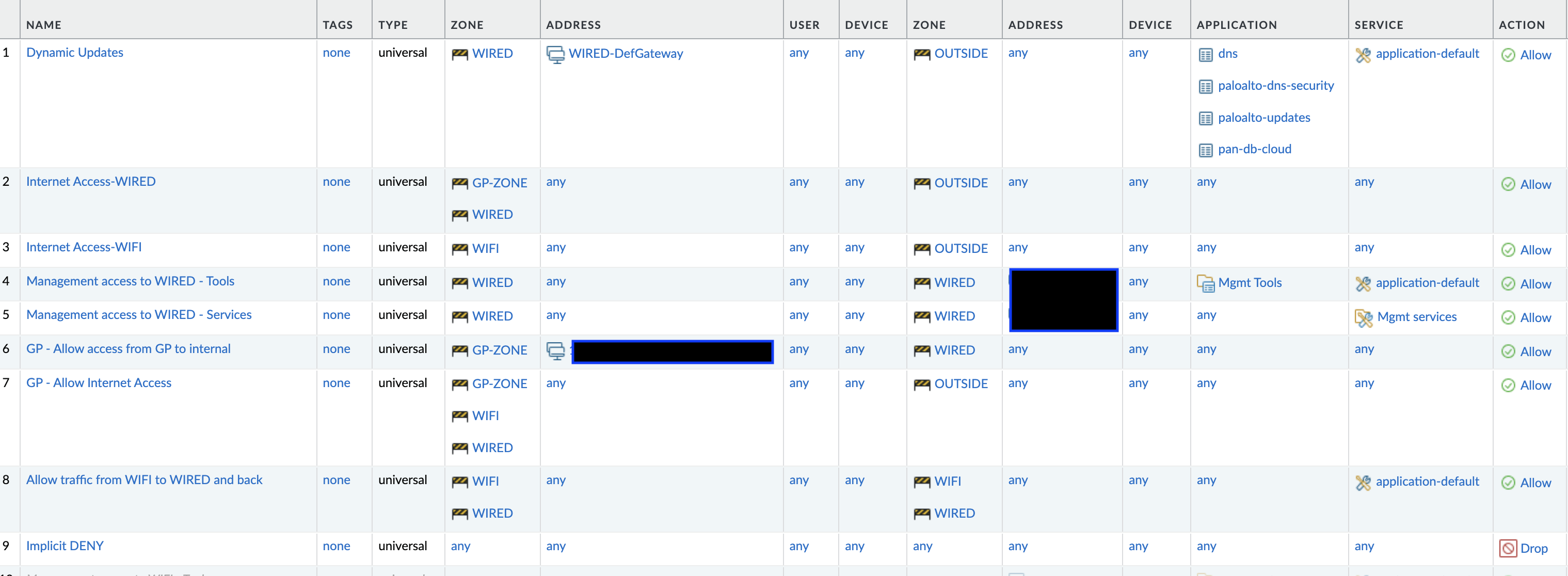

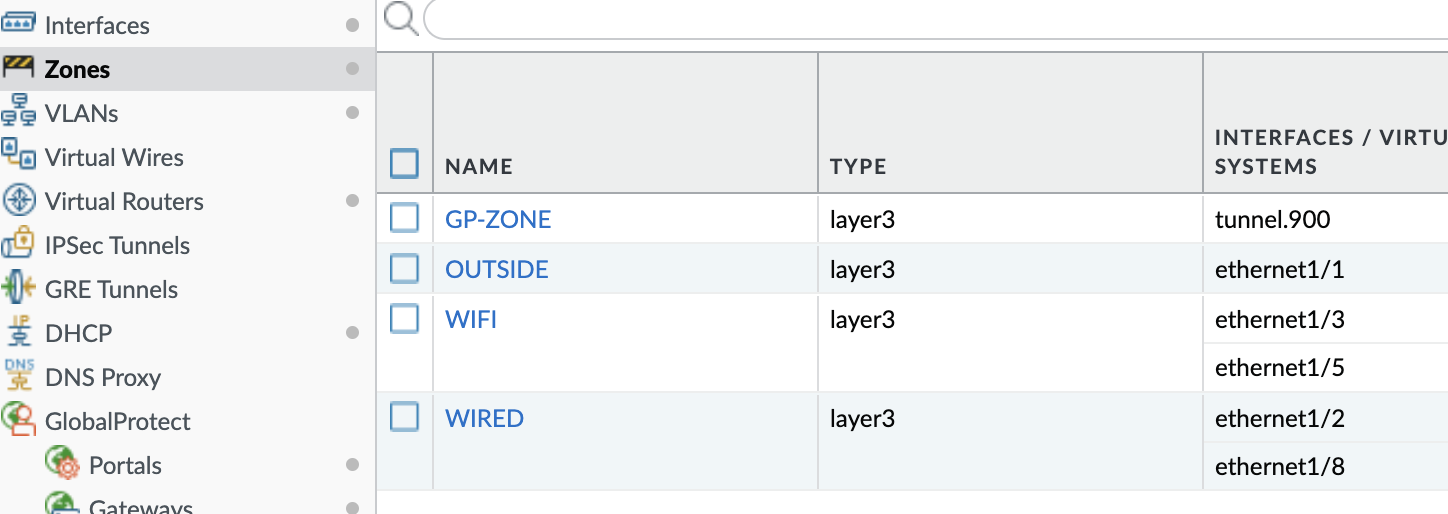
The physical connection is like this:
PAN — eth1/1 ———– ISP router
PAN — eth1/3 (.1) ——-10.2.2.0/24——–(.2)WIFI router (Internet or WAN port)
PAN interface (in this case eth1/3) is configured in L3 mode and assigned to default router and zone called WIFI. Interface is also assigned an IP address, 10.2.2.1/24. Keep in mind that WAN setting on wifi router has to be on the same subnet, so wifi router internet IP address will be statically assigned to 10.2.2.2/24.
The WIFI router is setup to provide wifi connectivity, and it is left in “router” mode, no need to use access point mode since in this access point mode you will lost some functionality, like guest wifi. For wifi router, you need to configure Internet access (or WAN port) by assigning a static IP address to your router.
Suggested manufacturer option is to use dhcp for ISP connection, but no need for this. So, to repeat, IP addressing is like this:
– PAN eth1/3 —- 10.2.2.1/24
– WIFI router WAN —— 10.2.2.2/24
– Subnet mask: 255.255.255.0 (or i like to use hexadecimal: f.f.f.0, less typing).
– Default gateway: 10.2.2.1 (PAN eth1/3 IP address)
– DNS servers: 8.8.8.8 8.8.4.4
– DHCP scope – 192.168.1.10 – .15
– Scope default gateway: 192.168.1.5 (this is IP address of your wifi router you have set it up in original configuration, and it is used for you to access wifi router for management purposes)
– Scope DNS servers : 8.8.8.8 8.8.4.4
In a nutshell, connections will look like this:
wifi client –> wifi ssid –> client gets ip address from the pool (like 192.168.1.11 and other dhcp settings) –> send Internet request to reach cciesecblog.com on the web; wifi router bridging this connection from wifi to wired and connects client to PAN eth1/3, using its own IP of 10.2.2.2 reaching 10.2.2.1. If PAN policy allows this type of communication, wifi client is able to reach to cciesecblog.com web page and reading thru this post…
Happy connecting…
 CCIE Security Blog